VEHICLE TRACKING: Analysis of turns and movement of vehicles with Civil 3D.
Autodesk's BIM software, Civil 3D, has various add-ons available to the user that help improve the design of the model, providing information and analysis about it. A clear example is the “Vehicle Tracking” add-on, which allows you to simulate the movement of different vehicles, the swept area during turns,... It also has tools for the design of roundabouts, intersections and parking lots.

DOWNLOAD AND INSTALLATION
If the plugin is not already installed within our software, we can download it from the official Autodesk website.
MENUS - TOOLS
- CONFIGURATION:
This is one of the first menus that we must open before starting to use the plugin. By accessing this tab, a window will open in which we can configure the scale with respect to the model, the distance, speed and angular units, layer criteria, rotation limitations, forward and reverse speeds,... Although Civil 3D contains the rules and settings for each country, it is worth stopping initially in this menu and configuring the different parameters according to our project. Note: These settings are general and apply to the entire project.
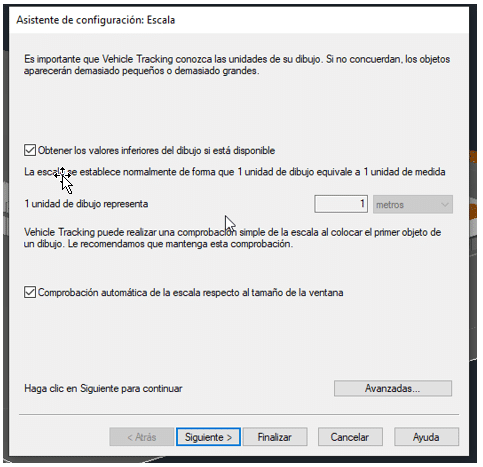
Although Civil 3D contains the rules and configurations for each country, it is worth stopping initially in this menu and configuring the different parameters according to our project. Note: These settings are general and apply to the entire project.
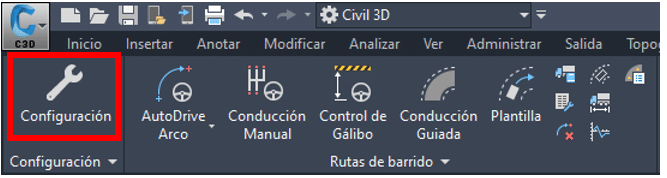
- SWEEP ROUTES: In this group we find several tools for creating routes for our vehicles. For this small demonstration, we will use the autodrive tool, which is the easiest and most automatic tool to generate the route of a vehicle assuming the default settings that, as we have already mentioned previously, can be configured.
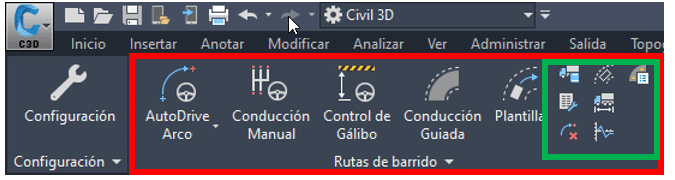
We can also generate reports and insert graphs and profiles. - PARKING LOTS AND ROUNDBOUNDS: With these tools you can design roundabouts and parking lots adjusted to the regulations of the corresponding country.

- REVIEW – ANIMATIONS – HELP: In these last tools, it is worth highlighting the possibility of generating visual animations (both schematically (in plan), visualizing the sweep lines, and in 3D).

CREATING ROUTES WITH AUTODRIVE
The process for creating and simulating routes with the “AutoDrive” tool is simple and intuitive. By selecting this option, a menu will open where we will have the option to make specific configurations for that particular route that we are going to generate. Two of the most important that we must take into account are: 1. SURFACE: First of all, we must know that Vehicle Tracking performs these simulations on a reference plane or surface. Either in the general configuration tab or in the specific configurations of each route, we must indicate the reference surface on which the simulation will be carried out. 2. VEHICLE SELECTION: Vehicle Tracking contains an extensive library of vehicles, classified by category, country,… We will select the vehicle that adapts to the analysis to be carried out. If you do not find the desired vehicle, there is the possibility of configuring one of those already existing in the library.
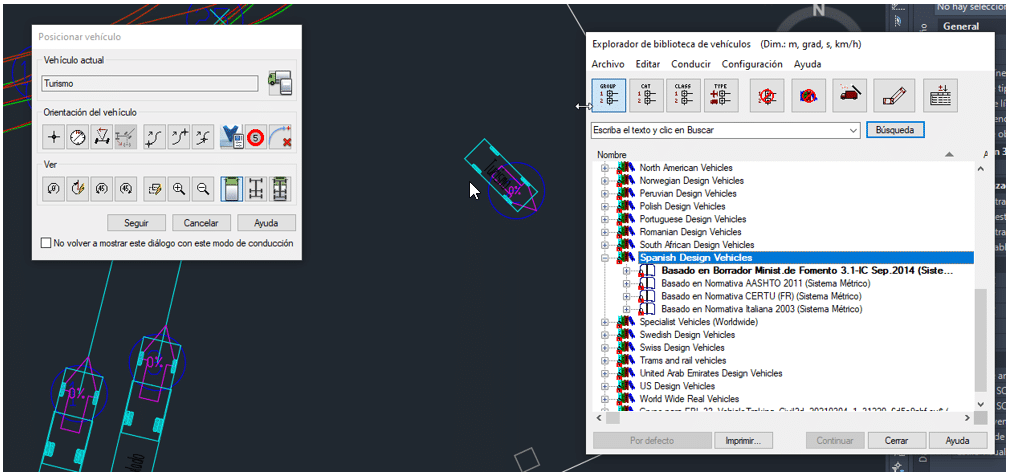
Once all the previous configurations have been made, we proceed to create the route of our vehicle. This can be drawn freely or by assigning an alignment that the vehicle will follow. At the end of this post we leave a simple demo of using this tool.
ANIMATION AND SIMULATION
Once the routes have been created, we can select those that we want to combine in the same simulation. The tool offers us the possibility of generating different simulations: in plan (visualizing the sweep lines), in 3D, ... and configure them to our liking. In addition, it allows us to save these simulations as “points of view”, videos (AVI format),…