Inventor-Revit Compatibility
Introduction
Until now, parts and assemblies were exported and loaded into a model as separate components. However, since the latest Inventor 2021 update, compatibility with Revit has improved significantly, making it possible to link Revit models in Inventor and create elements based on the BIM architecture.
Linking Revit Models in Inventor
The steps to achieve this are as follows:
- Import CAD files: Select the .rvt file you want to link. In this example, I will use a model of a wall with a window that I created in an earlier version of Revit.
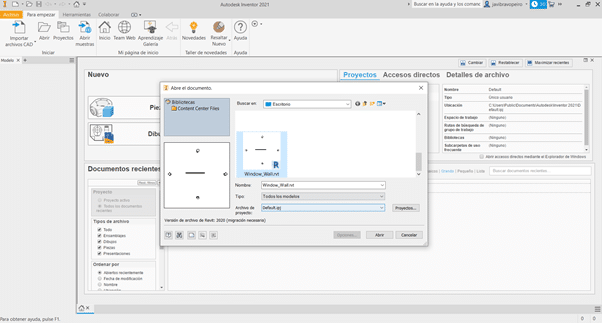
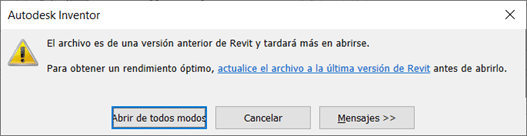
If the Revit file is not from the 2021 version, a message like the following will appear:
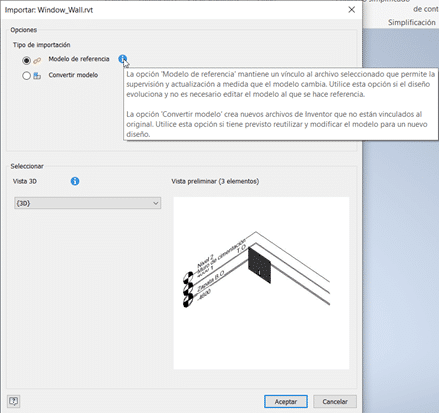
- Import options: You can choose whether to maintain a reference to the file or convert it into an assembly. You can also select which project view should be taken into account when opening it.
- Model using references: We create a new part and, when drawing the sketch by projecting references from the linked model, we can make our element adapt automatically if the geometry or position of the window changes.
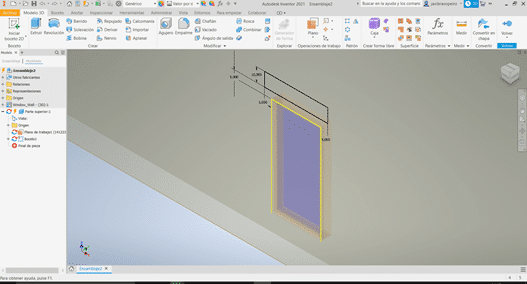
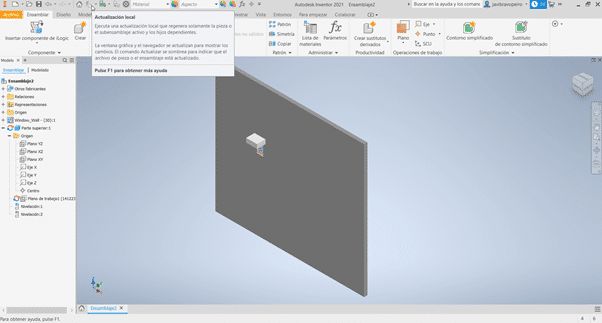
- Changes to the model: We modify the window type and its position in the model. To see these changes reflected in Inventor, we need to update the link, and our model will update accordingly, as shown in the following image.
Conclusions
With these new features offered by Inventor 2021, the ability to model parts and assemblies using the BIM architecture as a reference opens up a wide range of interesting possibilities for the industry.
In this example, we have seen how to link a Revit model to Inventor. However, to use the resulting part later, we have several options, such as exporting it as a family, linking it, or importing it into the .rvt model as a CAD element.
Another major advantage is the ability to create these links with models hosted in the BIM 360 cloud. This allows project teams to have both Revit models and Inventor elements available within a collaborative environment.
Do you still have any questions? Is there anything you would like to ask us?
Contact us for advice on BIM tools and methodology.