Introduction to using Dynamo in CIVIL 3D
1. Introduction
In our attempt to promote work in BIM, with the advantages and opportunities it offers; Today we want to introduce you with this small post to the use of tools like Dynamo for Civil 3D.
Autodesk Dynamo for Civil 3D is a visual programming application that can be used to automate tasks in Civil 3D. Once the application is installed, Dynamo commands are available on the Manage ribbon.

We have already talked about Dynamo for Revit on other occasions and, as you will see, the graphical environment and its operation are identical. Although it is true that the number of nodes developed for Civil 3D is much smaller than those available in Revit, we can access very interesting nodes for optimizing our workflow.
In future posts we will see some examples with predefined nodes or others developed by our team using Python scripts.
The main difference that we detect in the graphical environment is the new Civil 3D window that appears in the “Library” space.
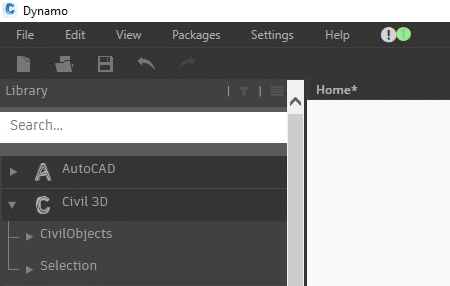
From this window we will have access to the different nodes that can be applied to specific elements of our Civil 3D model:
- Lineups
- Profiles
- Linear works
- Surfaces
- Subassemblies -…
The next step is, just as in Revit, to work on our own definitions according to needs, combining and interrelating the different nodes.
We can also search for packages created by other users or share our own.
2. Practical example
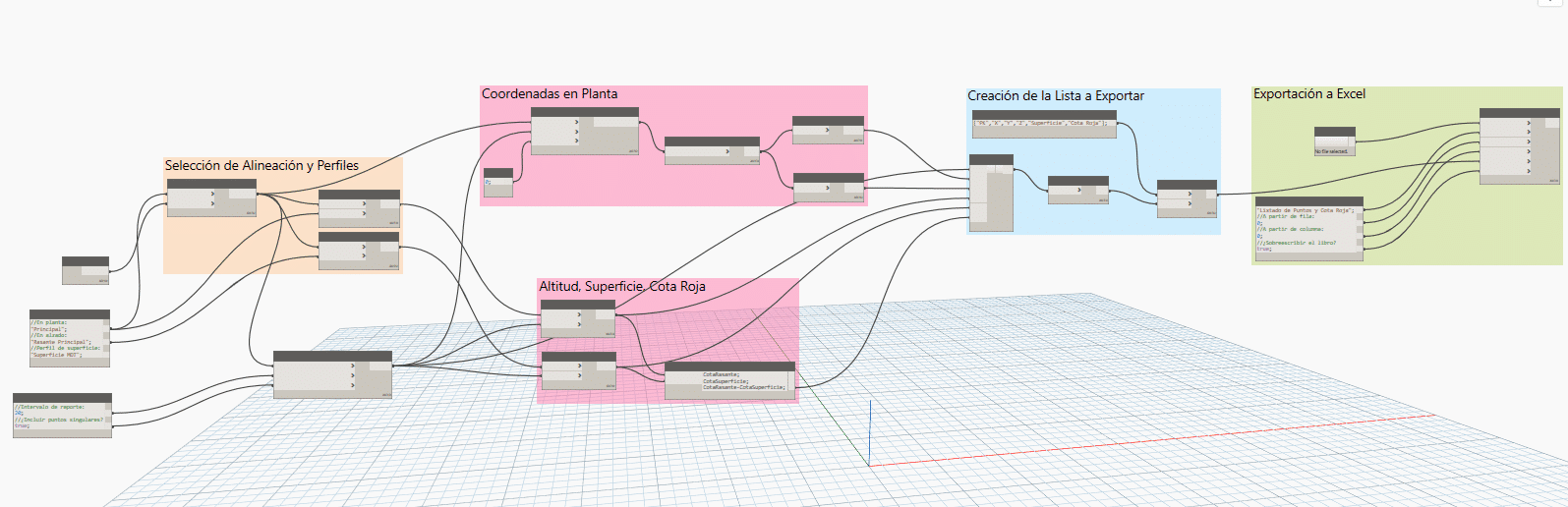
As an example of automation, we show this simple but useful Dynamo command with which we can extract the coordinates of an alignment in an Excel sheet:
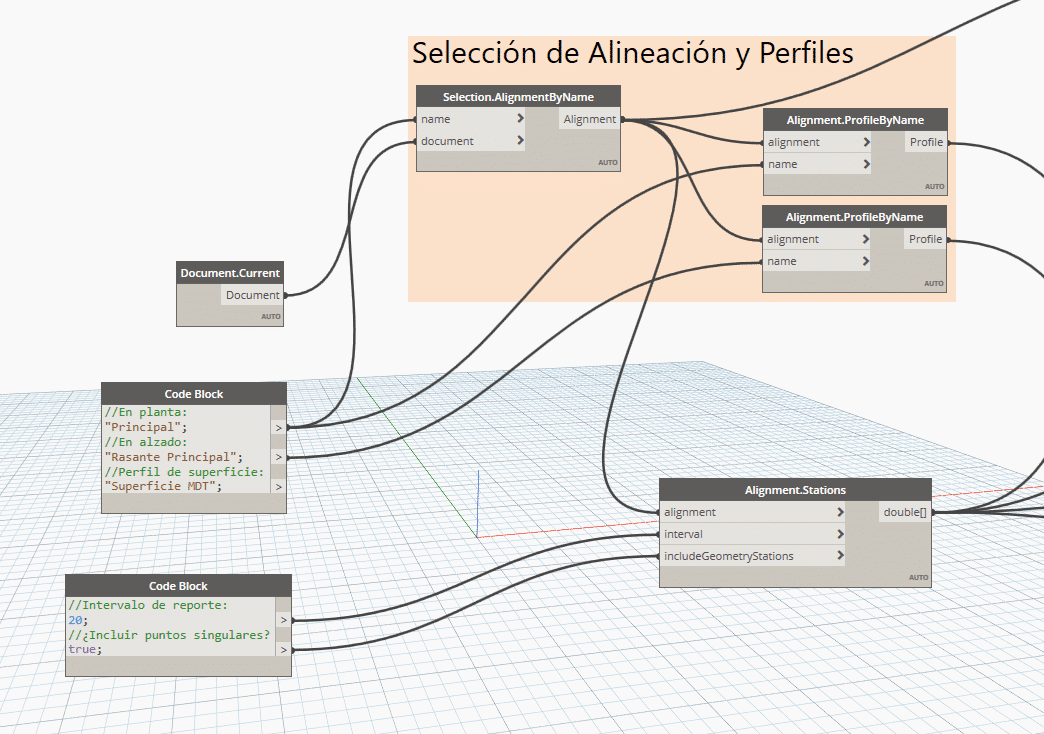
With the following nodes we indicate the file from which we want to extract the data, as well as the names of the alignment and profiles (alignment and surface). The bottom node indicates the tracking or data extraction intervals (every 20 meters in this case).
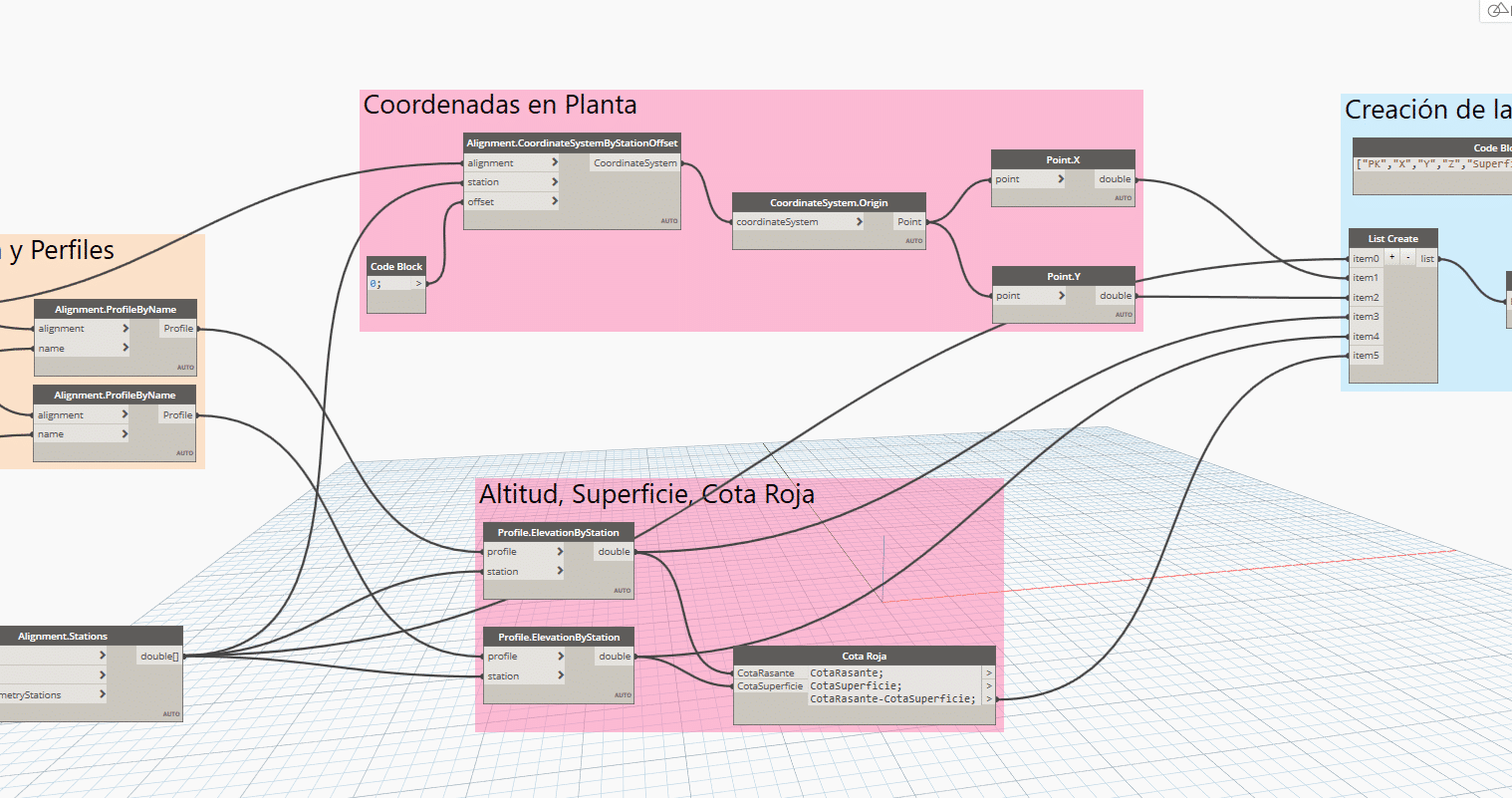
The next step is to indicate the data to be extracted: Plan coordinates and surface elevations and alignment in the established intervals. Furthermore, we want to integrate one more parameter; the red chain.
As there is no specific node to obtain this data, we designed a simple script with which we perform the following operation with the elevation data, obtaining the red elevation data:
{RED DIMENSION = GROUND DIMENSION – SURFACE DIMENSION}
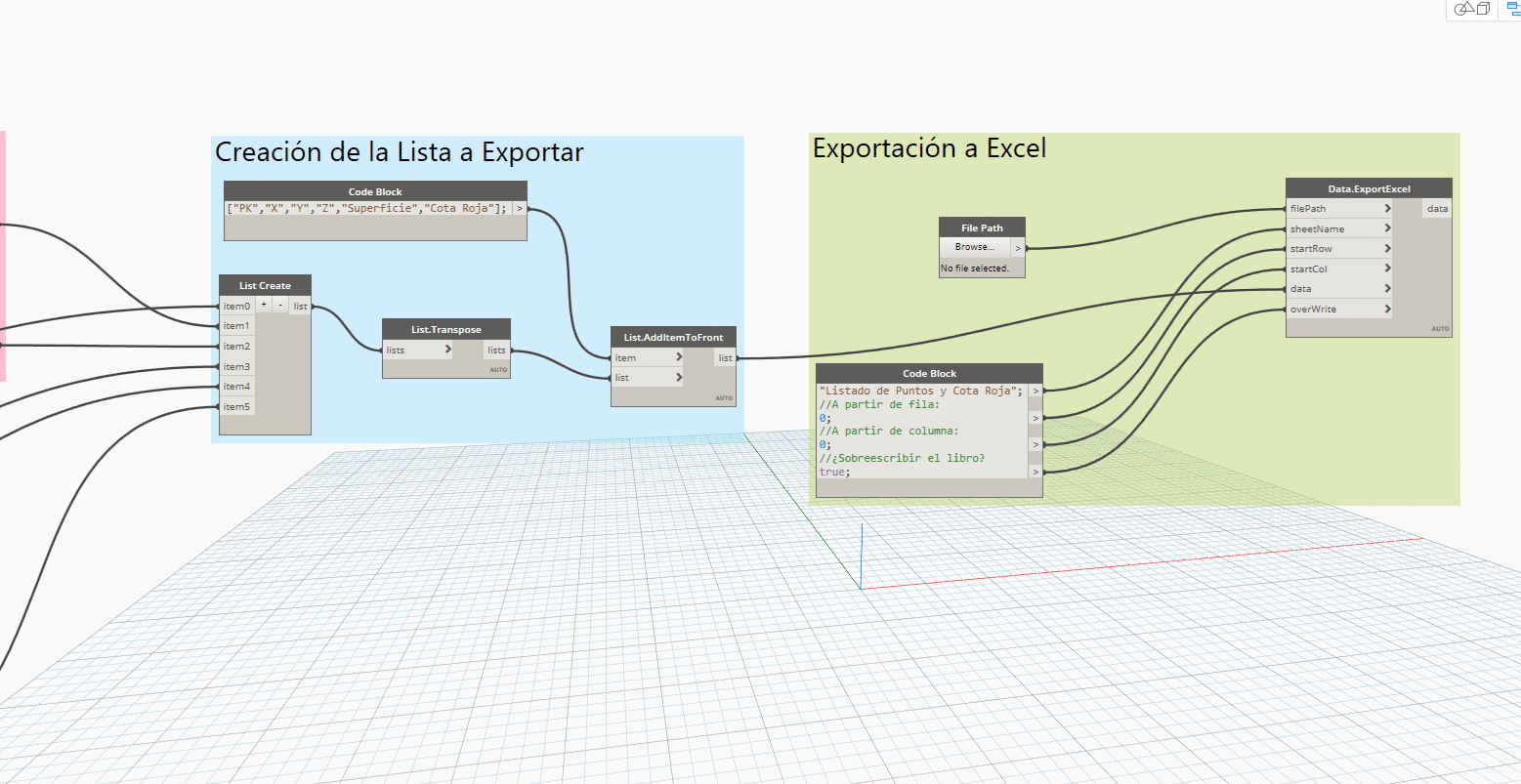
Finally, we only have to indicate the creation of a list with the data obtained (List Create) and extract it to an Excel file (Data.ExportExcel).
For more information, do not hesitate to contact us at info@atbim.es
By Ignacio Orús, BIM Specialist at atBIM.