BIM Modeling of Reinforcement, Part 02: Modification of geometries with Dynamo.
In the previous post we explained how to proceed optimally to undertake the modeling of the reinforcement of a circular shoe for a wind turbine. In this we are going to explain how, based on this previous geometric model, we have developed a definition of Dynamo that allows us to automatically modify the shape and dimensions of these reinforcements.
The objective of this definition is to take advantage of the work invested in obtaining the 3D geometric model. And, in some way, automate the process of geometric modification of the reinforcement so that it is fast and agile.
The Dynamo definition takes the data from a starting Excel sheet, previously structured, with the entire breakdown of reinforcement data. The idea is to take advantage of this project deliverable as a basis for the automation and modification of the reinforcement according to the subsequent variation in the calculation.
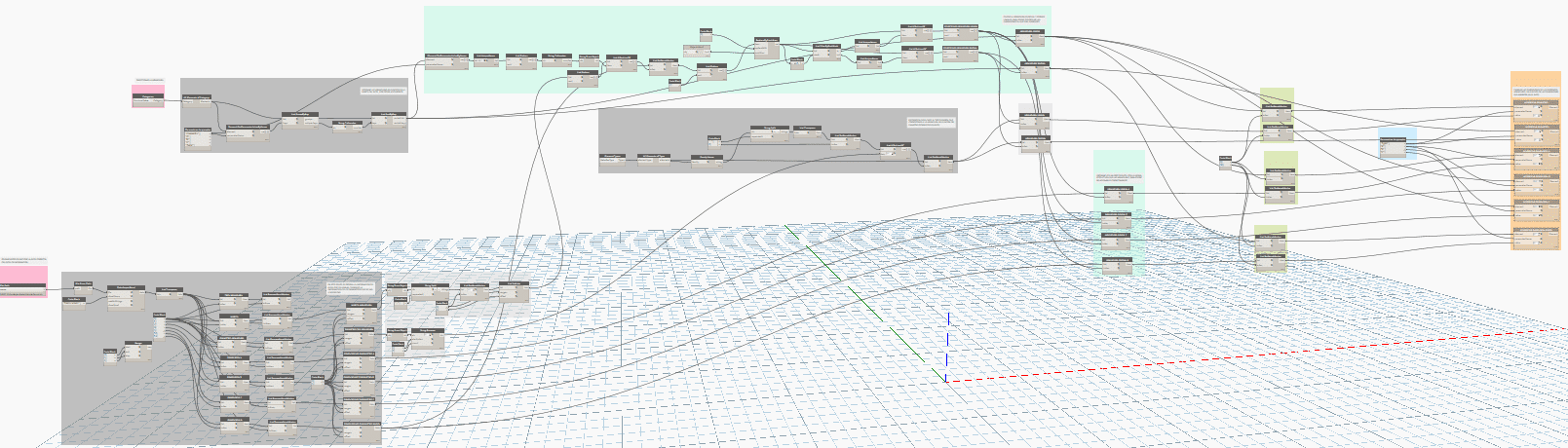
Dynamo definition for automatic armor modification
This definition consists of collecting the information from Excel (first set of gray nodes), ordering and structuring this information so that it can be used in Dynamo and Revit. And later, collect the information about the model's reinforcements (second package of gray nodes).
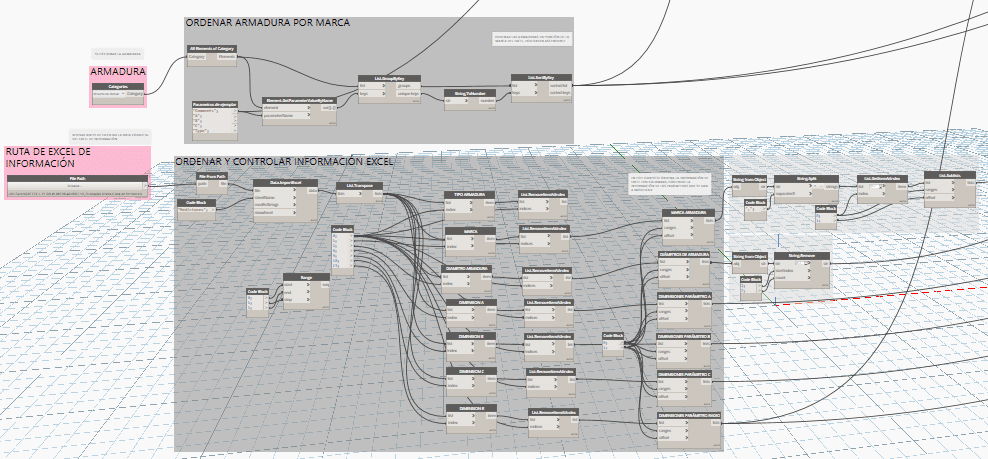
Set of nodes to organize information
Once all the information has been collected, we have to reorder it to make sense of it. Data collection in Dynamo always follows a tree-like structure (lists), in which we will have to navigate from the trunk to its branches to find the items we need in each branch (data set).
The format and order must be the same between Excel and Revit. And for this, the List.AllIndicesOf, ReplaceByCondition and List.GroupByKey nodes are used, which allow us to differentiate between radial and linear reinforcement dimensions.

Structuring of information in excel
To modify the dimensions, the Element.SetParameterByName node will be used and with it, if the dimensions are different between the model and Excel, they will be automatically modified in the model. So the user or the technician in charge only has to modify the dimensions in Excel and execute the definition for Dynamo to do the rest in Revit.
This definition allows the work between the modeler and engineering to be quickly joined. In this way, they can work with a common document (Excel table) that does not cause rework and optimizes the time invested in changes.
In the next post we will explain how we export these projects to the openBIM .IFC format using the specific Psets based on the client's needs.
By Andrea Gracia, BIM Coordinator at ATBIM.