3D print BIM model from Revit, Part 2, laminate the model.
How the laminating program works
A laminating program generates a G code (.gcode) file that contains information on the movements, temperatures and amount of material necessary when printing a model.
There are many laminate programs, the option we give here is Cura, free, open source and with constant updates to add functions.
We import the file
We can now load the .stl into the laminator, choose the profile of the machine we have (if it does not exist we can create it) and adjust values such as layer height, speed, perimeters or filling so that our models are to our liking and optimizing your time:
- The height of the layer will affect the quality of the part and will make it take longer to generate.
- The perimeters establish the resistance of the walls.
- The filling indicates the density and the pattern it will have between the walls.
- The speed and material will indicate the movement and temperature at which the material is extruded.
Tip: for overhangs we recommend placing custom supports. After experimenting with several types, the tree ones are the ones that perform best and are easier to extract. For this you can use Meshmixer, free and from Autodesk.
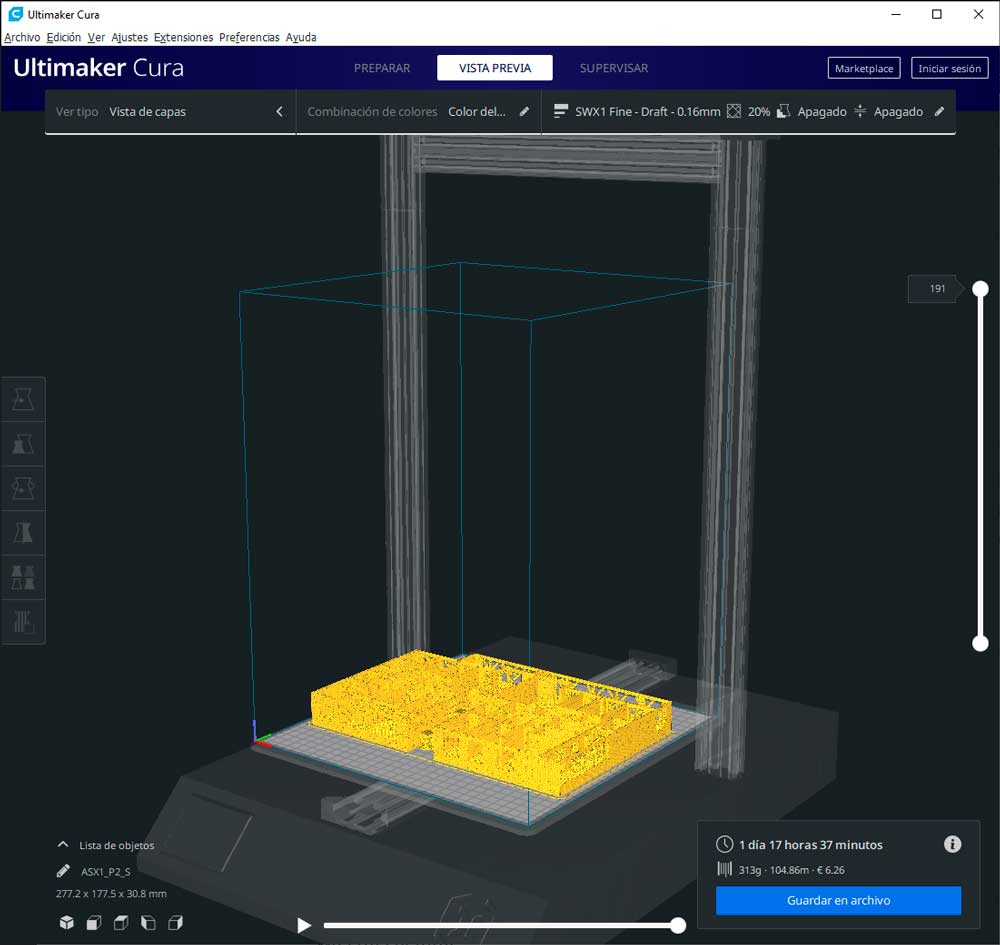
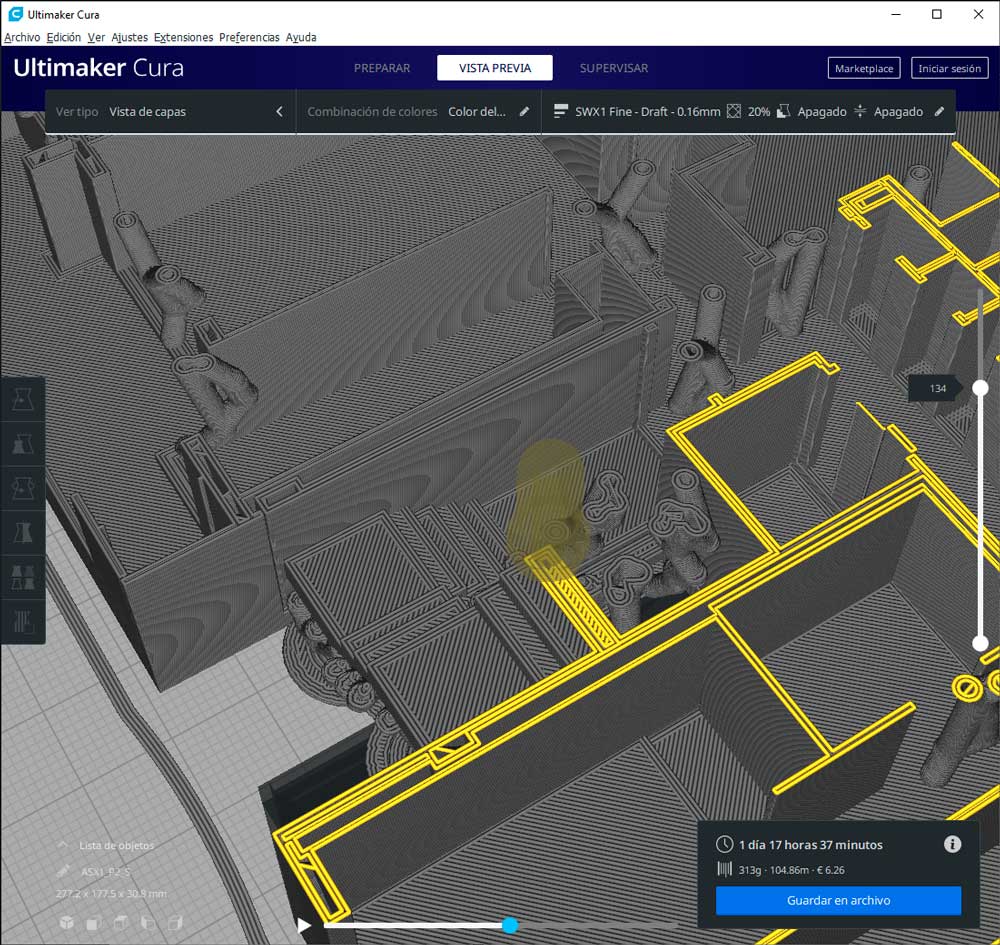
Rolling mill shots
Now ready to print
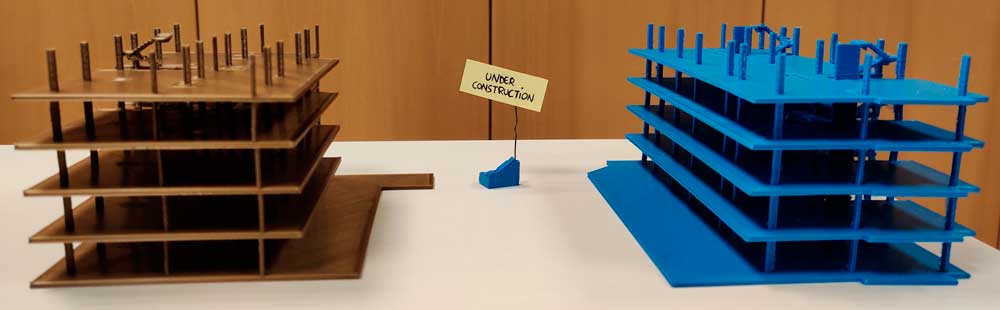
This file is now suitable for reading on any printer, so we can load it and press "print". All we have to do is clean the supports and enjoy our 3D printed model.
If you have questions about the machine or what parameters we use, do not hesitate to contact us.
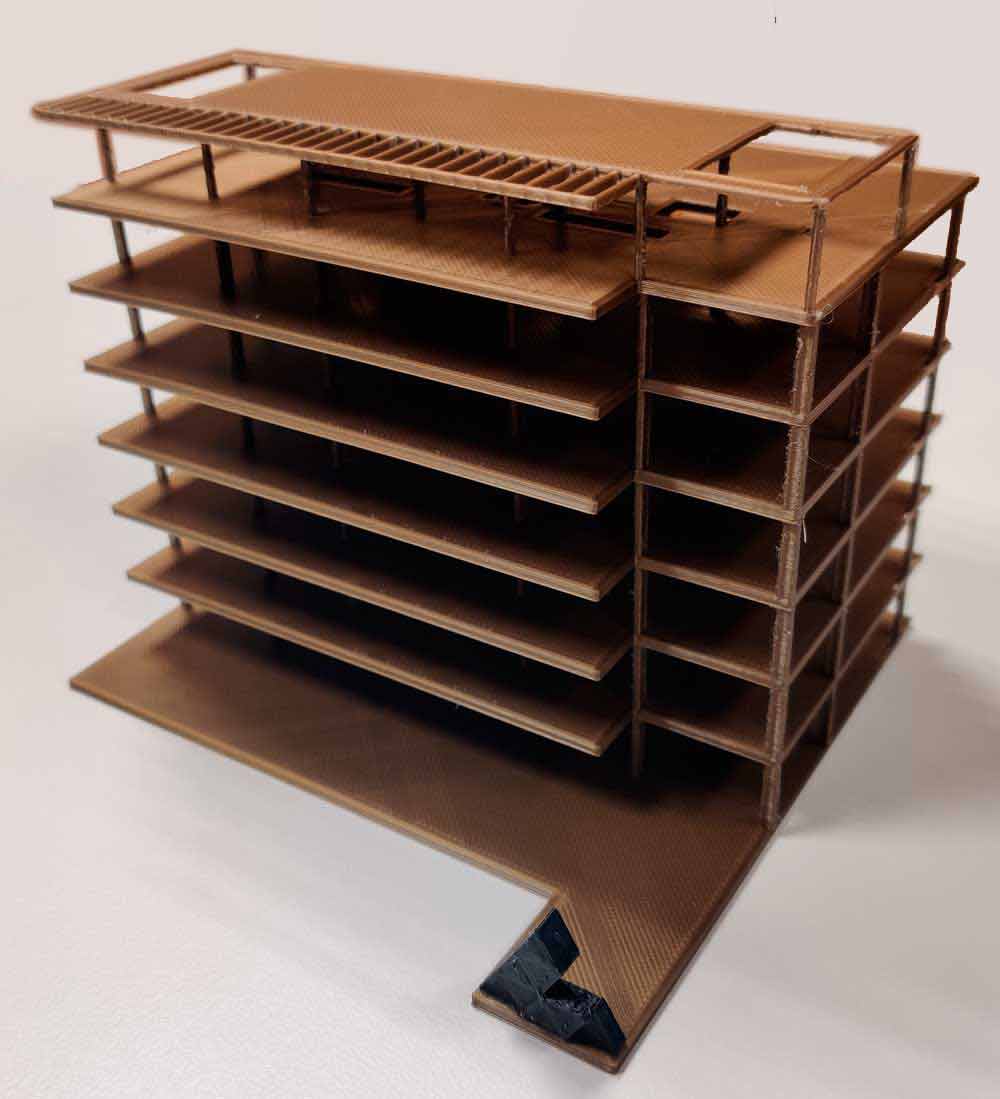
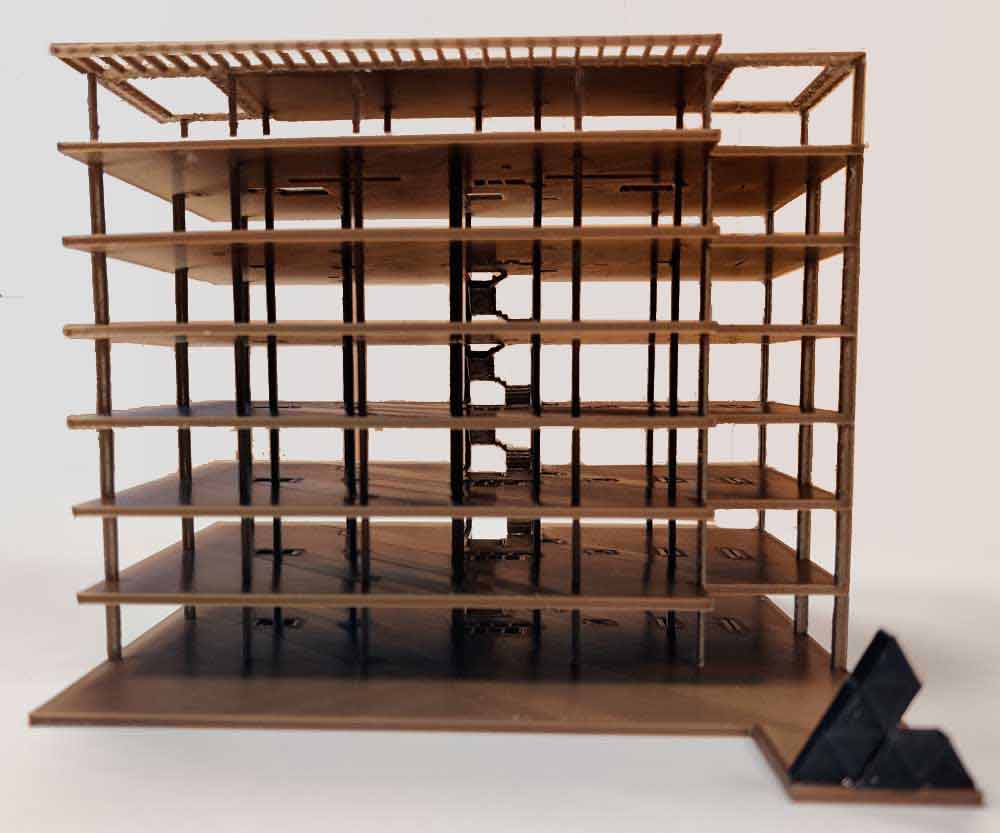
General view of several models of the same urbanization
If you want to know how to export BIM models from Revit, don't miss the first part of the post.