3D print BIM model from Revit, Part 1, export the model.
The model is a very useful tool in the AEC sector to show a scale representation of our model. But to be honest, now that we have BIM models and 3D printers, it has occurred to more than one of us to leave aside foam board and hours of white glue to 3D print our Revit model with exact measurements, no matter how complex its shape may be.
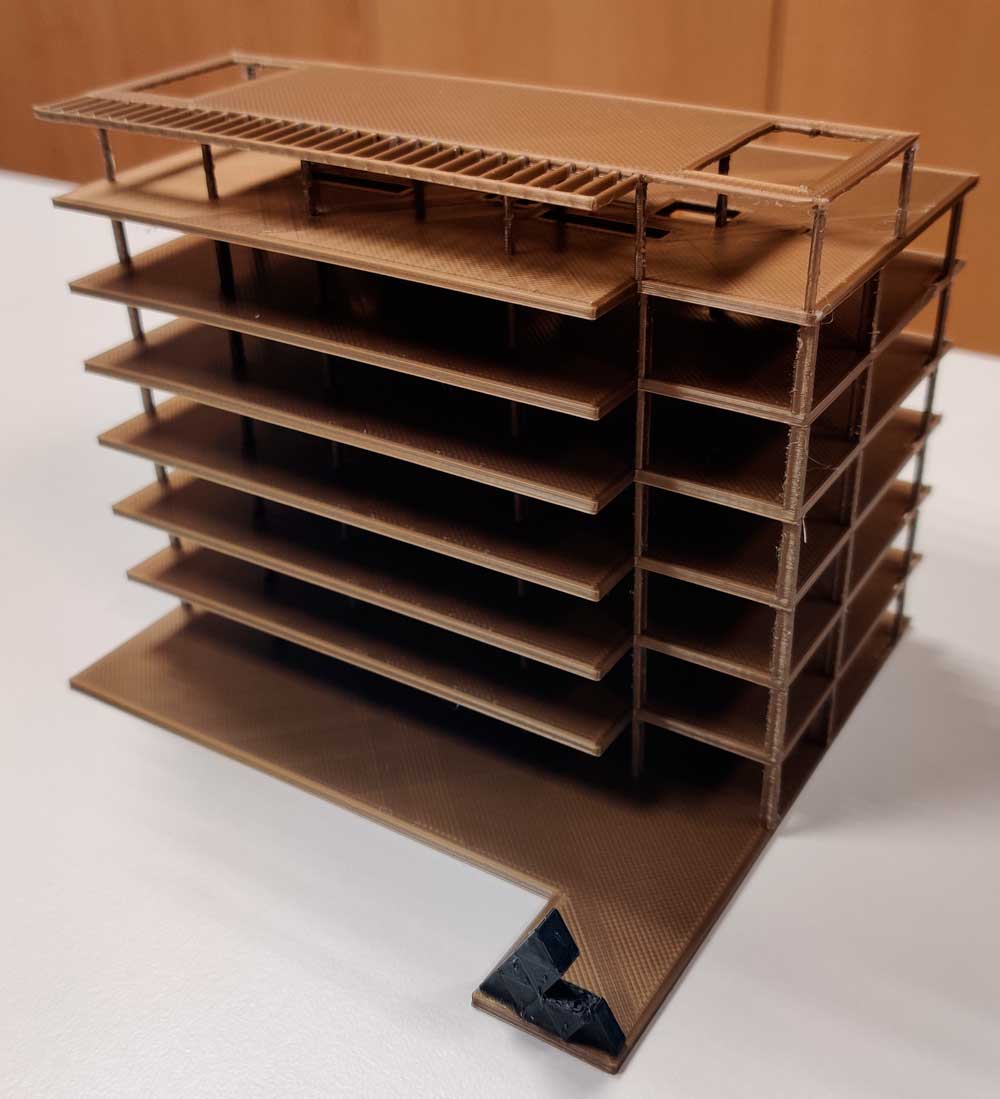
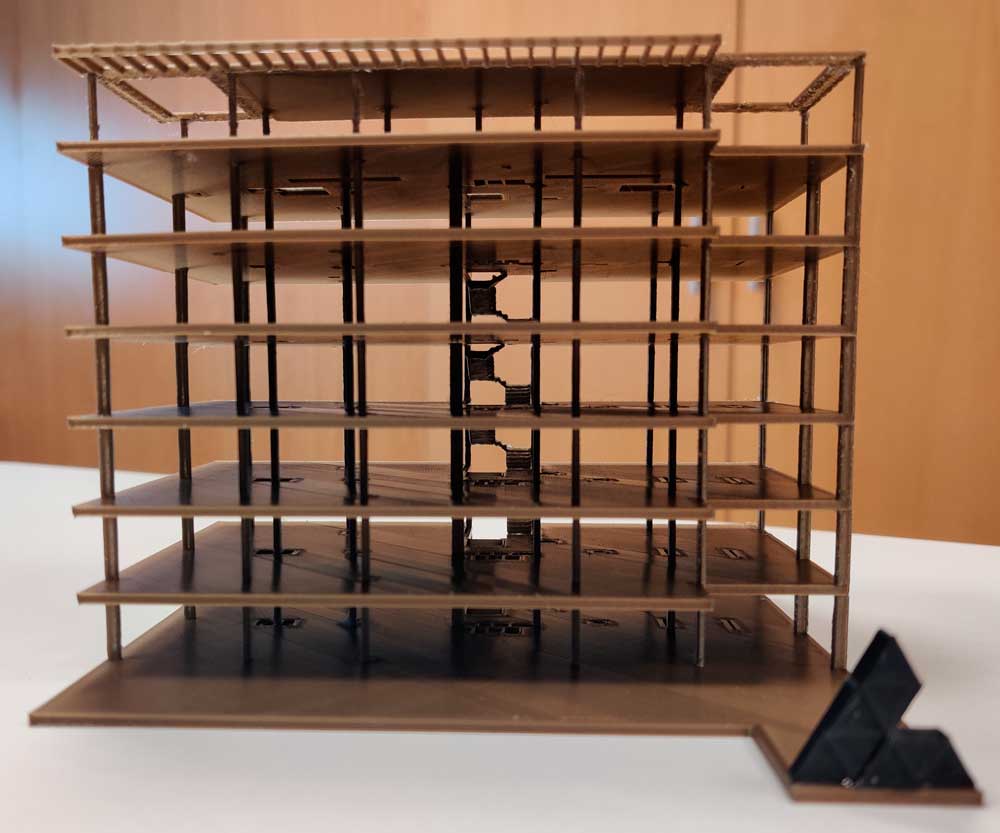
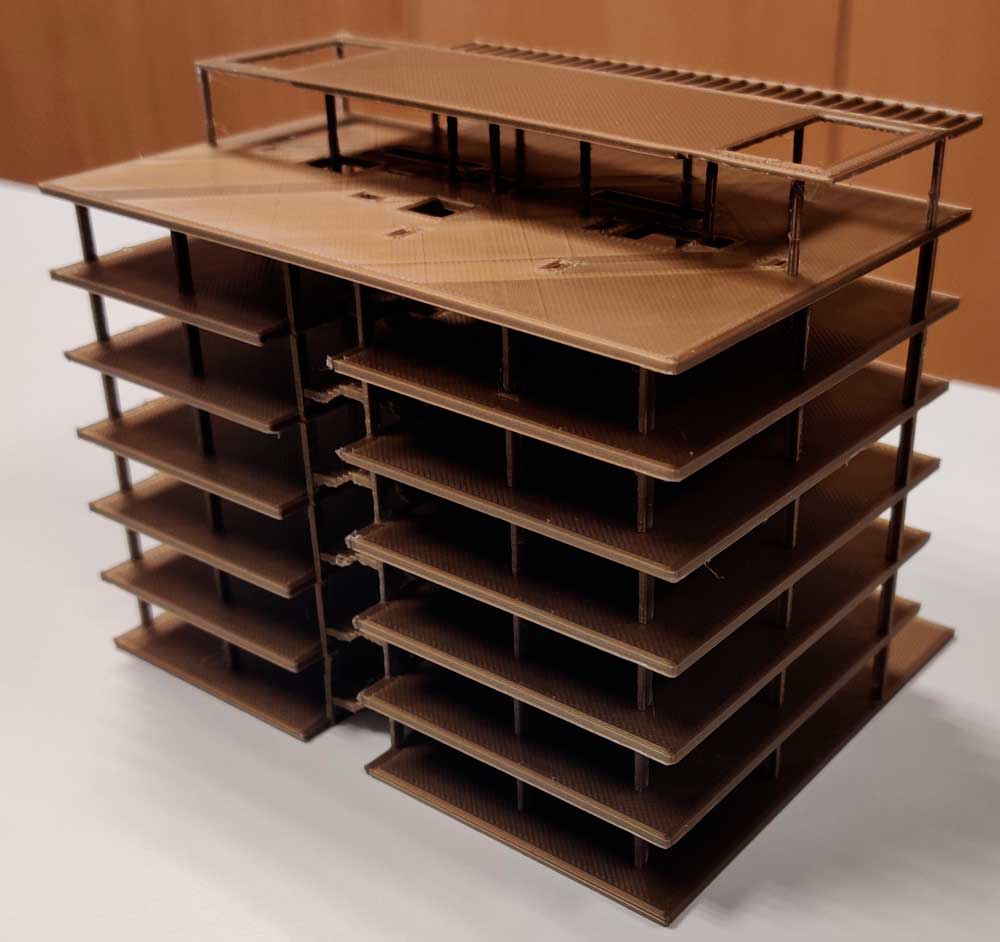
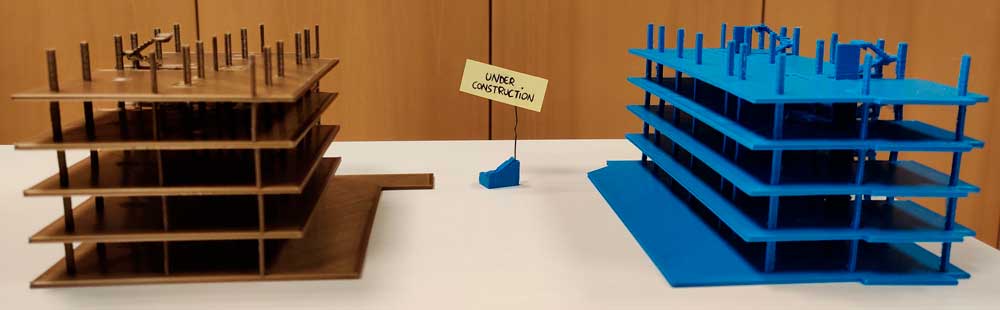
Models extracted from Revit and printed in 3D
In this post, we will show how to print a Revit model, so we will need the "STL Exporter" plugin compatible with the version we use.
Model preparation
Before exporting the model, we have to know that everything that is shown in the active 3D view will be exported and that it will be exported in ".STL" format, as a triangle mesh.
Important! If we have visible categories and there are elements that cannot be seen from the outside, those elements will also be modeled and exported.
When exporting a BIM model to 3D print, these are usually the three most common cases:
- Complete model: we will generate a general 3D view, hiding by filters, categories or elements what we do not want to export.
- Specific plants: a 3D view must be made for each plant** to be able to export it independently of the rest.
- A detail/encounter: section boxes can be used to isolate a conflict zone or an area of special complexity.
Tip: we recommend using a view template and applying it to those that we will use to export the models. In this way we will always have hidden the categories that we do not want to print or filtered those elements that we do not want to see.
Export the model
Once our views are generated and the templates are applied, we can export it. With the view active, we will activate "STL Exporter" where a window will appear with 2 tabs like the following.
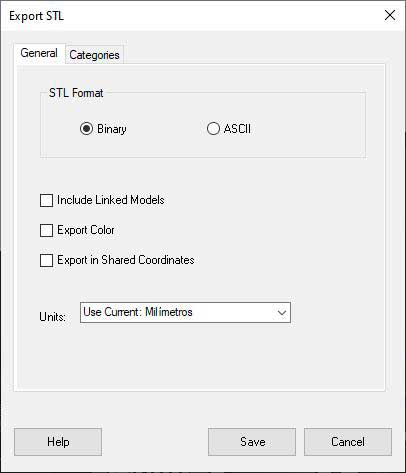
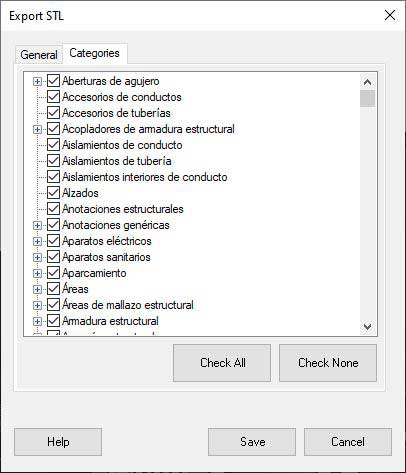
Snapshots of the plugin
From the first tab we can define the .stl format, include elements of linked models, export it with colors, include coordinates or change the units.
Tip: if you want to extract elements from linked models, it is best to copy said elements or bind the link (Bind Link) since it does not recognize the section box for links and would export all elements.
In the second there is a category selector, but if a template is already applied, this step will not be necessary.
If you want to know how to laminate the model and print it, don't miss the second part of the post.